Webinars
Overview
Hosts can schedule webinars and set up webinar rooms ahead of time with custom branding and pre-uploaded files. Each webinar room has a unique URL and can be used either for a one-time session or for recurring events.
Create Webinar (Room)
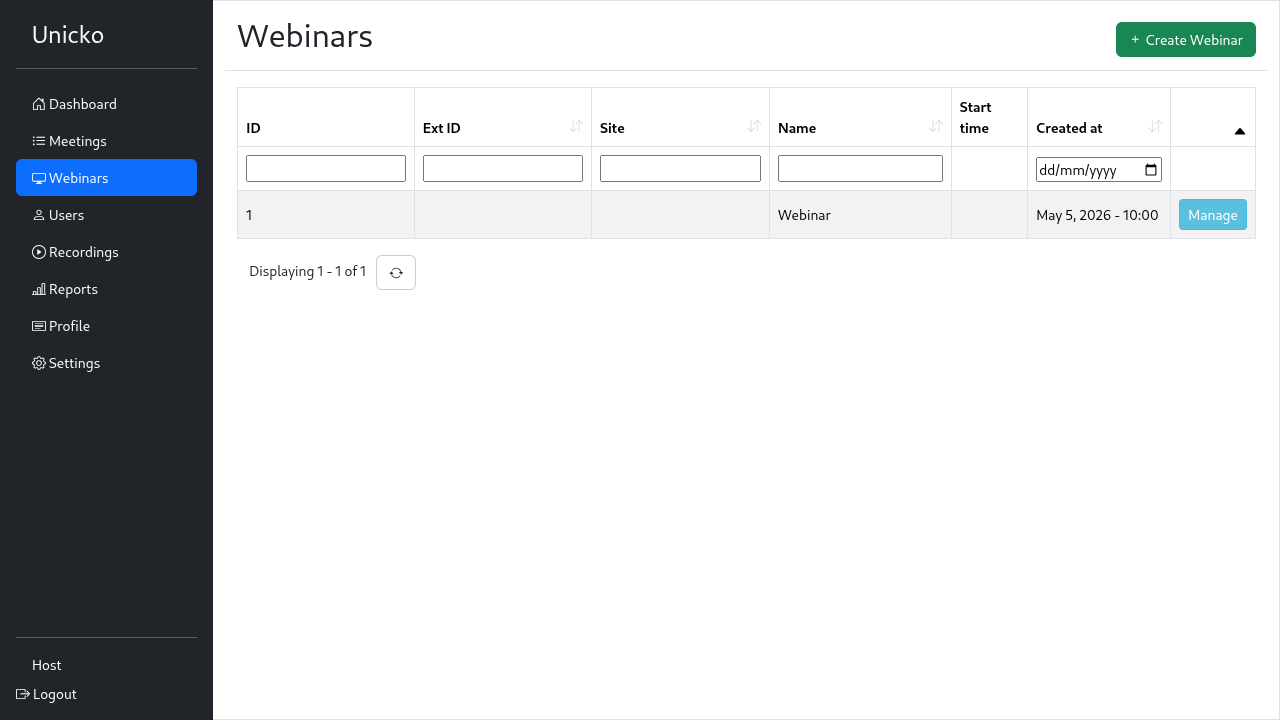
To create a webinar, click the Create Webinar button.
Webinar Settings
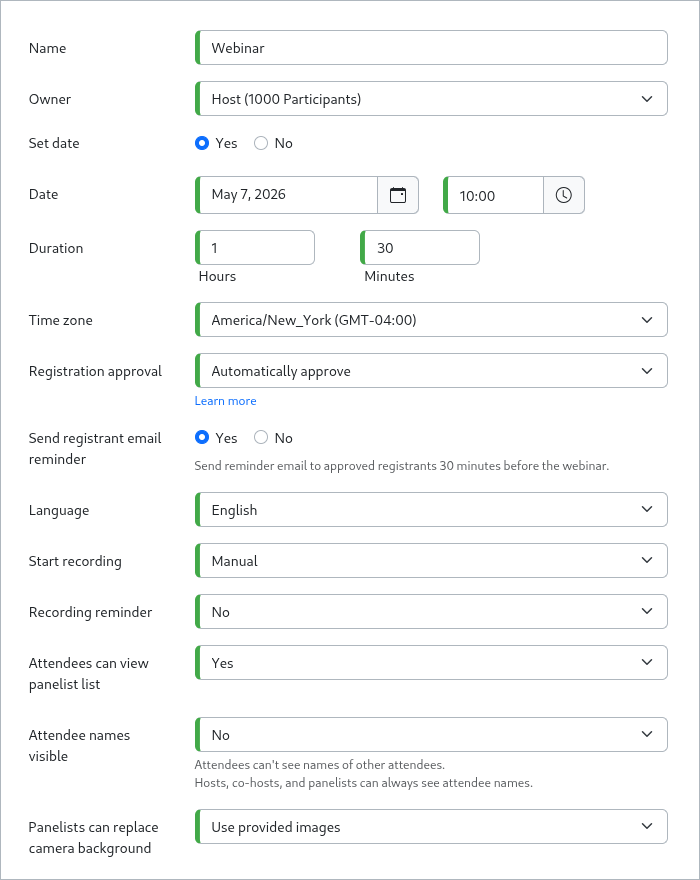
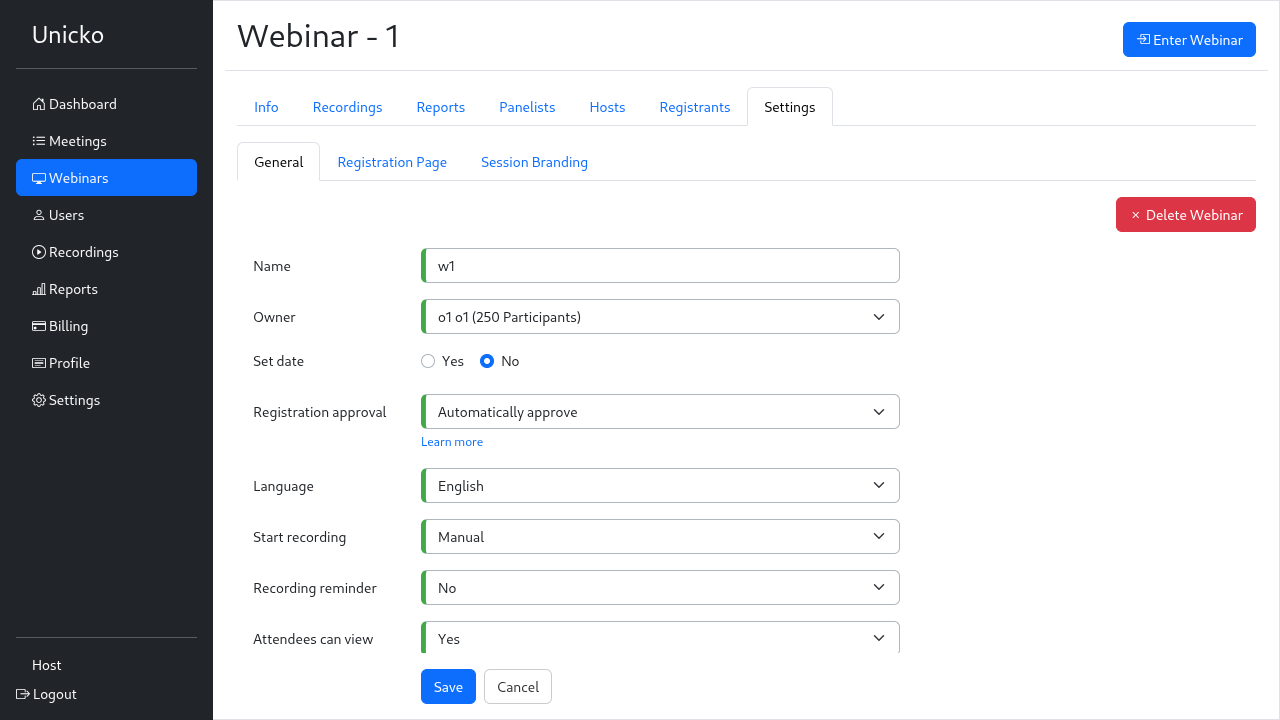
Name
Type in a name for your webinar.
Owner
The webinar owner must possess an assigned webinar license to create, schedule, and host the webinar, manage its settings, assign co-hosts, oversee registrants and recordings, and view reports.
Set date
You can set a date and time for the webinar. Registrants may sign up at any time and will receive the join link via email upon approval of their registration.
Registration approval
No registration required
Registrants will immediately join the webinar. A registrant with the webinar URL will be asked to fill the required fileds in the registration page, and will be able to enter the webinar.
Pre-approved email list
Access to the webinar is limited to pre-approved email addresses. Once registrants submit their contact information on the registration page, their email is validated against the approved list, and they can join the webinar.
Automatically approve
After completing the registration form, registrants are automatically approved and receive an email containing their webinar join link.
The host can view all registrants under the Registrants tab and manage their access by approving or denying them.
Manually approve
Registrants will have to register for the webinar in advance. The host must approve registrants before they receive email with information on how to join the webinar.
The host can view all registrants under the Registrants tab and manage their access by approving or denying them.
Organization (Single Sign-On)
Users will be redirected to your OpenID Connect Identity Provider. See Single Sign-On for further details.
Send registrant email reminder
Set to Yes to send reminder email to approved registrants 30 minutes before the webinar.
Language
Choose the default language for the webinar interface.
Start Recording
Manual
The host can start, pause and stop a recording at any time during a session. Learn more.
Auto
The webinar will automatically start recording when the host joins a session.
Disabled
The webinar will not be recorded.
Recording reminder
No
The host will not receive a recording reminder when joining the webinar.
Yes
The host will receive a recording reminder pop-up when joining the webinar.
Attendees can view panelist list
Set to No if you wish to hide the panelist list from attendees during the webinar.
Attendees names visible
Set to Yes if you wish to that attendee names will be visible to all. Hosts, co-hosts, and panelists can always see attendee names.
Panelists can replace camera background
Host can allow panelists to display images as their camera background during a webinar.
No
Panelists cannot replace the camera background.
Use provided images
Allow Panelists to replace the camera background with provided images.
Use custom and provided images
Allow Panelists to replace the camera background with custom and provided images. Learn more.
Manage Webinar
Click the Manage button next to the relevant webinar to view and edit it's settings.
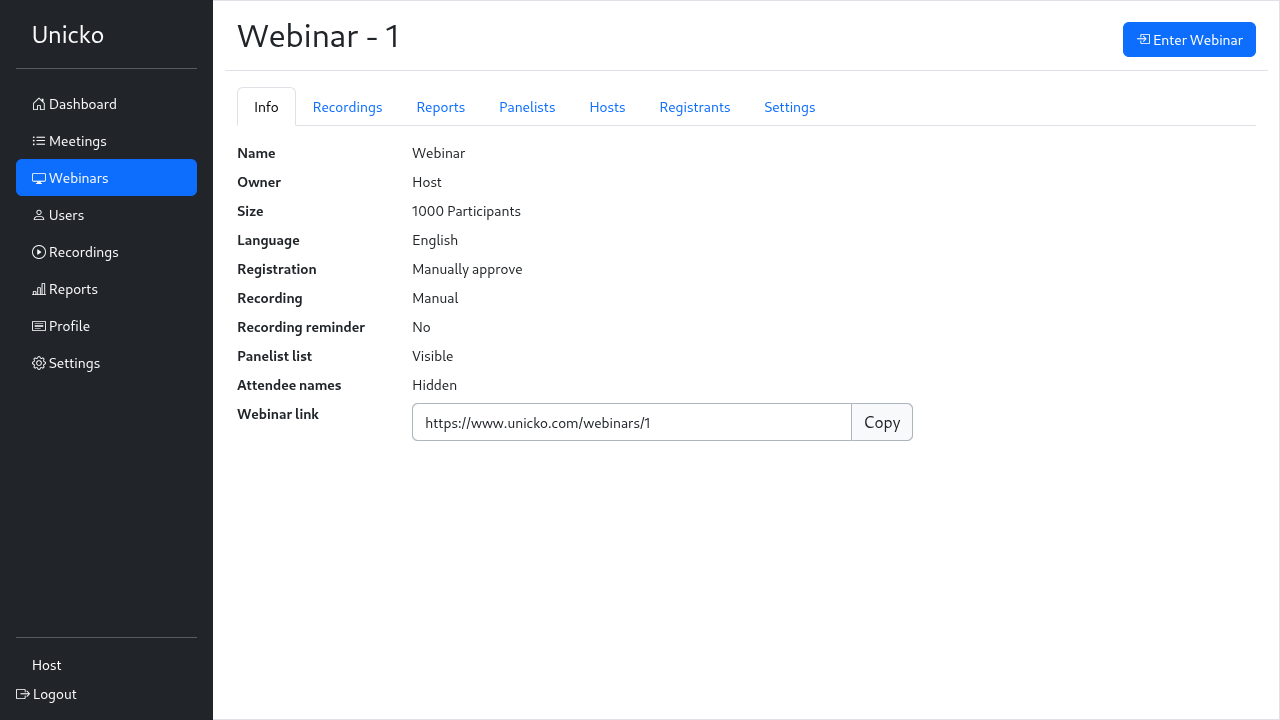
Info
An overview of the webinar details and settings. Copy and share the Webinar Link with registrants. The link can be pasted in an email or other messaging service.
To join the webinar as a host, click on Enter Webinar.
Recordings
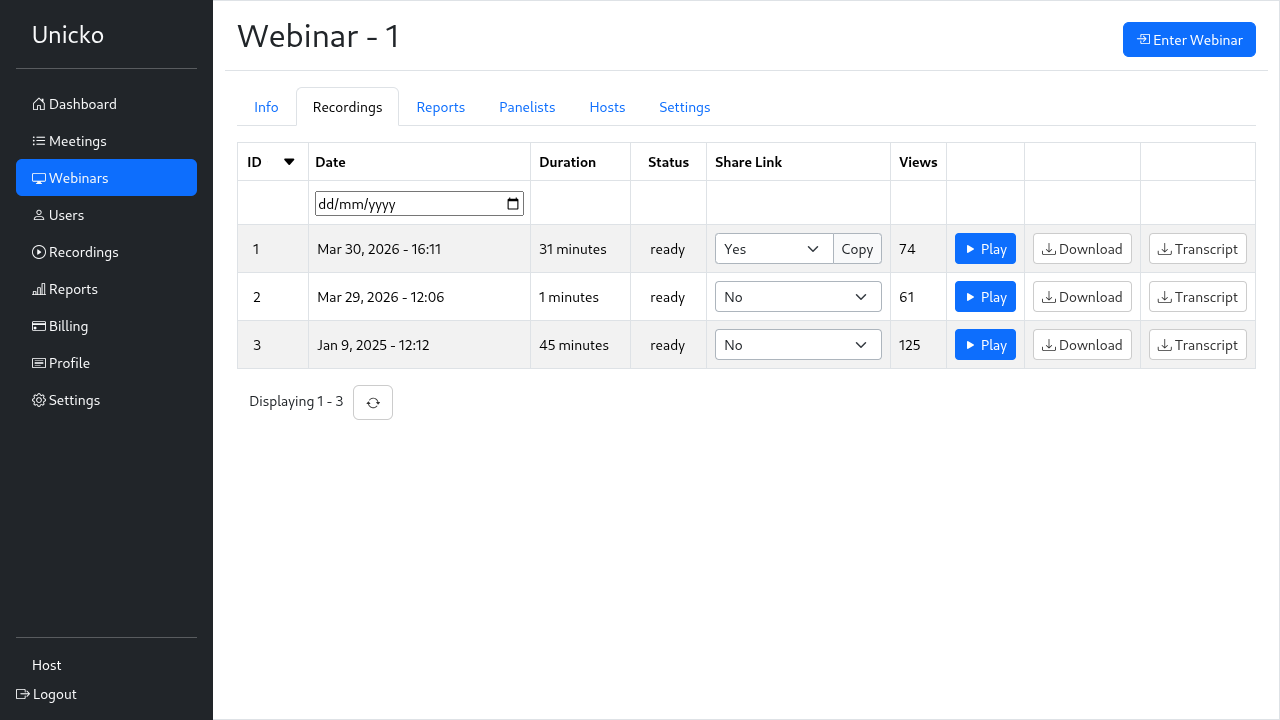
When a recording is ready, the host can send a recording link to attendees (Share Link). The host can Play, Download or Delete a recording, and download a Transcript.
Reports
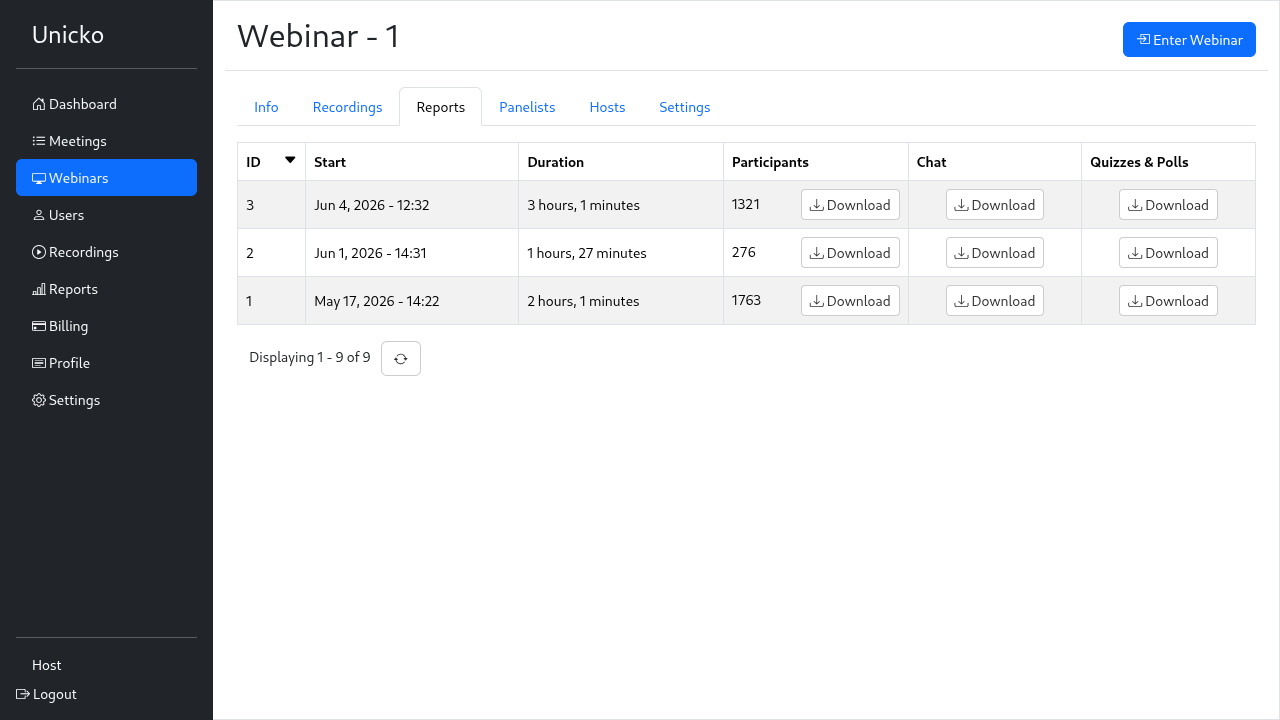
For each session, the host can download attendance report (Participants), chat and Q&A (Chat) and Quizzes & Polls results.
Note:
- Attendance reports are automatically deleted 12 months after the session.
- Chat, Q&A, Quizzes & Polls reports are automatically deleted 30 days after the session.
Panelists
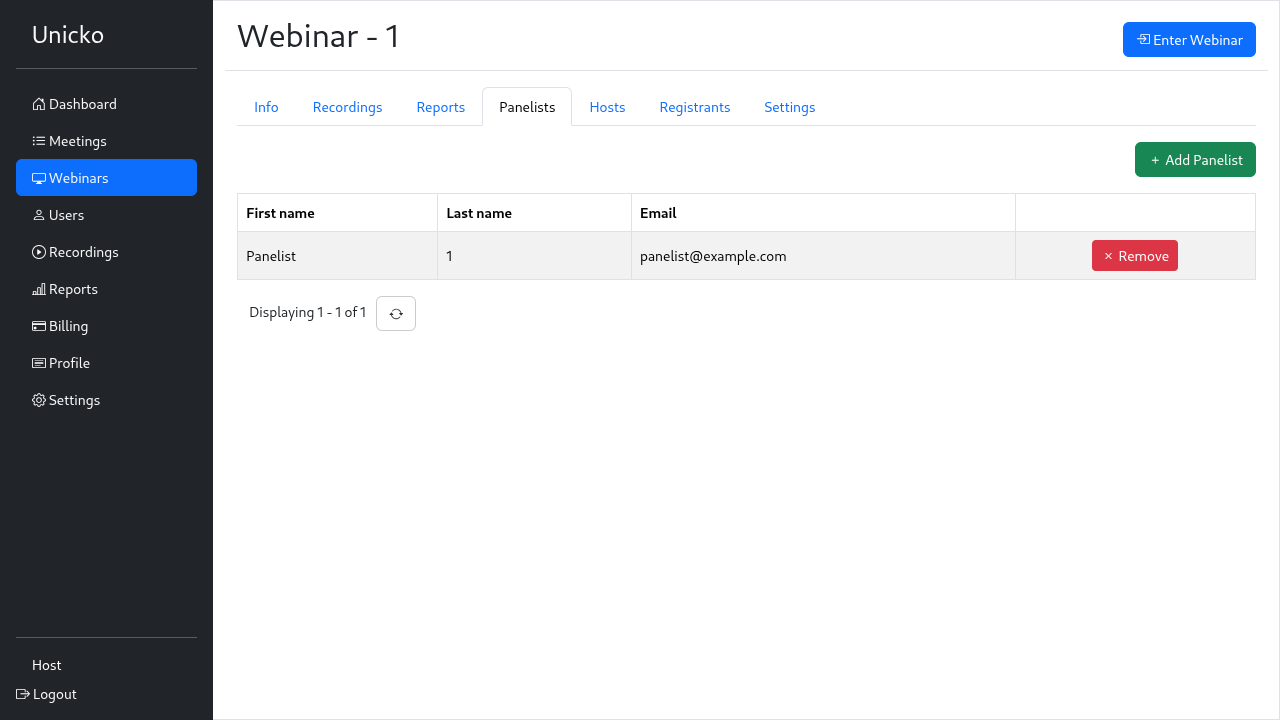
A list of the webinar's panelists. Use Add Panelist to invite a panelist, who will then receive an email with a private link that grants them access to the webinar room at any time.
Hosts
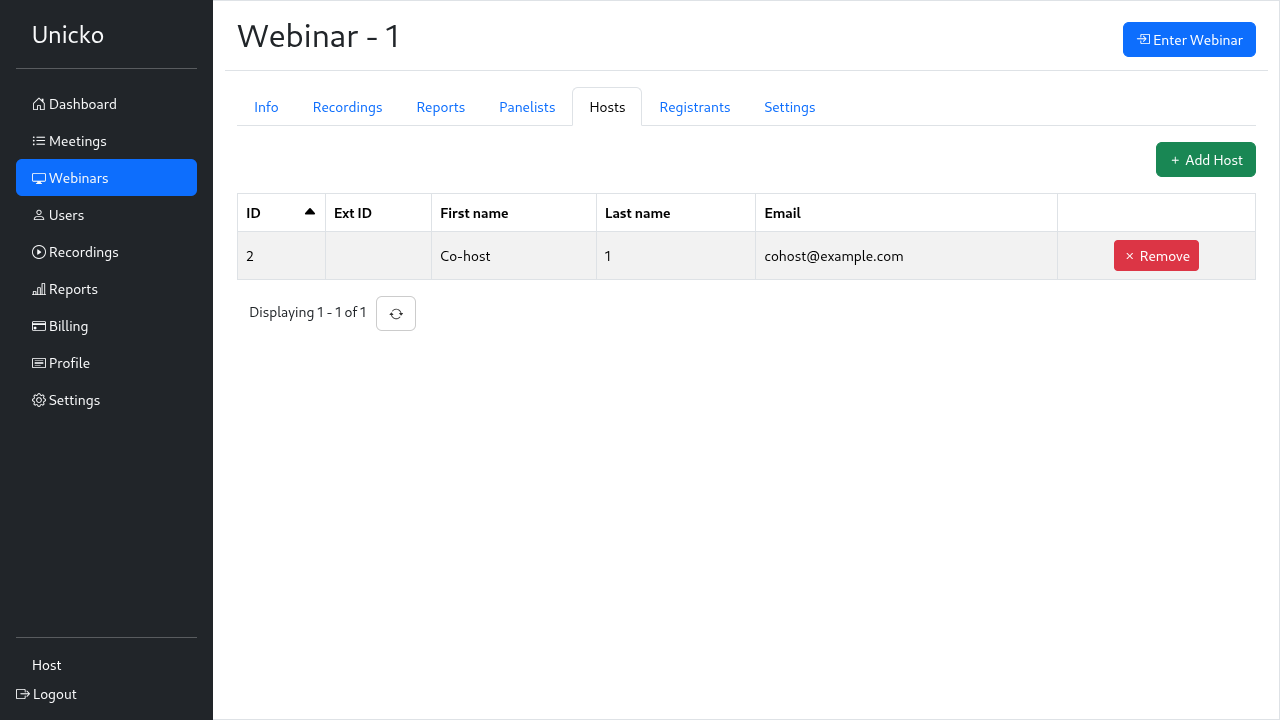
A list of the webinar's co-hosts. Use Add Host to add licensed users as co-hosts.
Registrants
Shown if the registration-approval is set to Automatically approve or Manually approve.
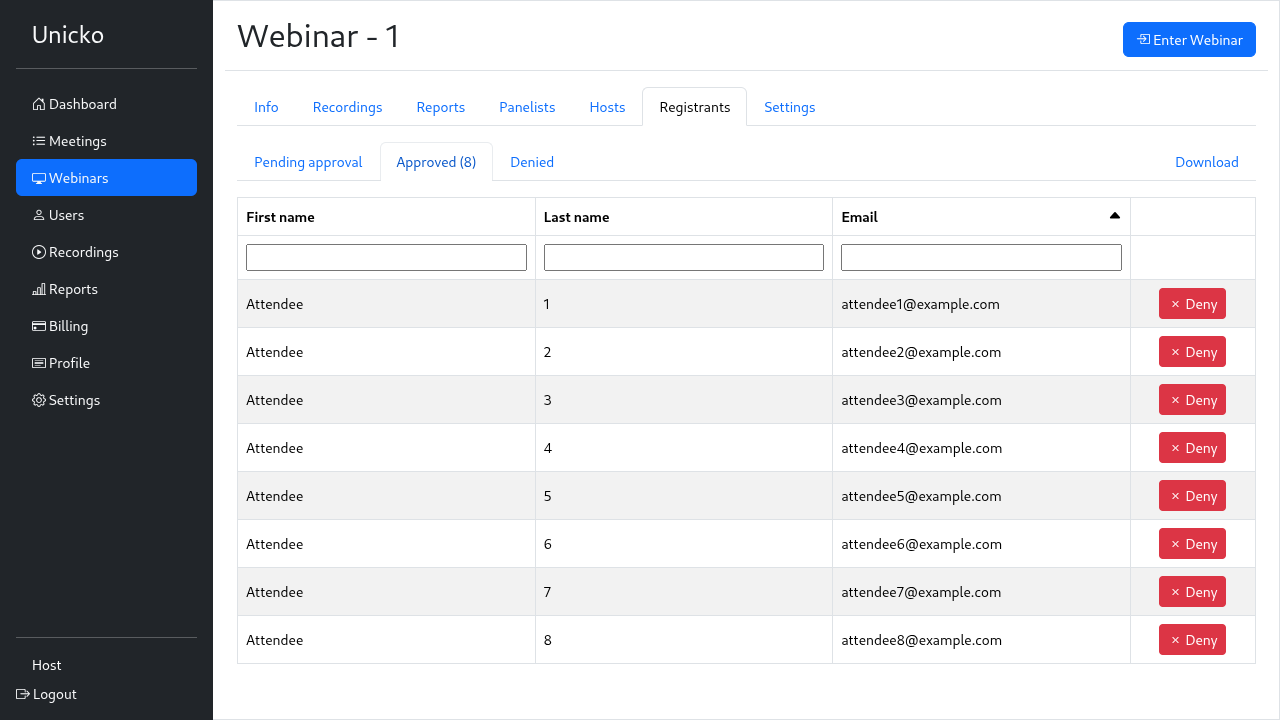
The host can view registrants, Download a CSV file and approve or deny pending registrants. An approved user will receive a personal link via email.
Settings
General
Edit the webinar settings. See Create Webinar (Room).
To delete a webinar, click the Delete Webinar button.
Note:
- Webinars without recordings are automatically deleted after 12 months of inactivity. When a webinar is deleted all files and reports are deleted.
- The webinar content (shared files, whiteboard, text, etc) is automatically deleted after 3 months of inactivity.
- Attendance reports are automatically deleted 12 months after the session.
- Chat and Q&A are automatically deleted 30 days after the session.
- Poll and Quiz responses are automatically deleted 30 days after the session.
Registration Page
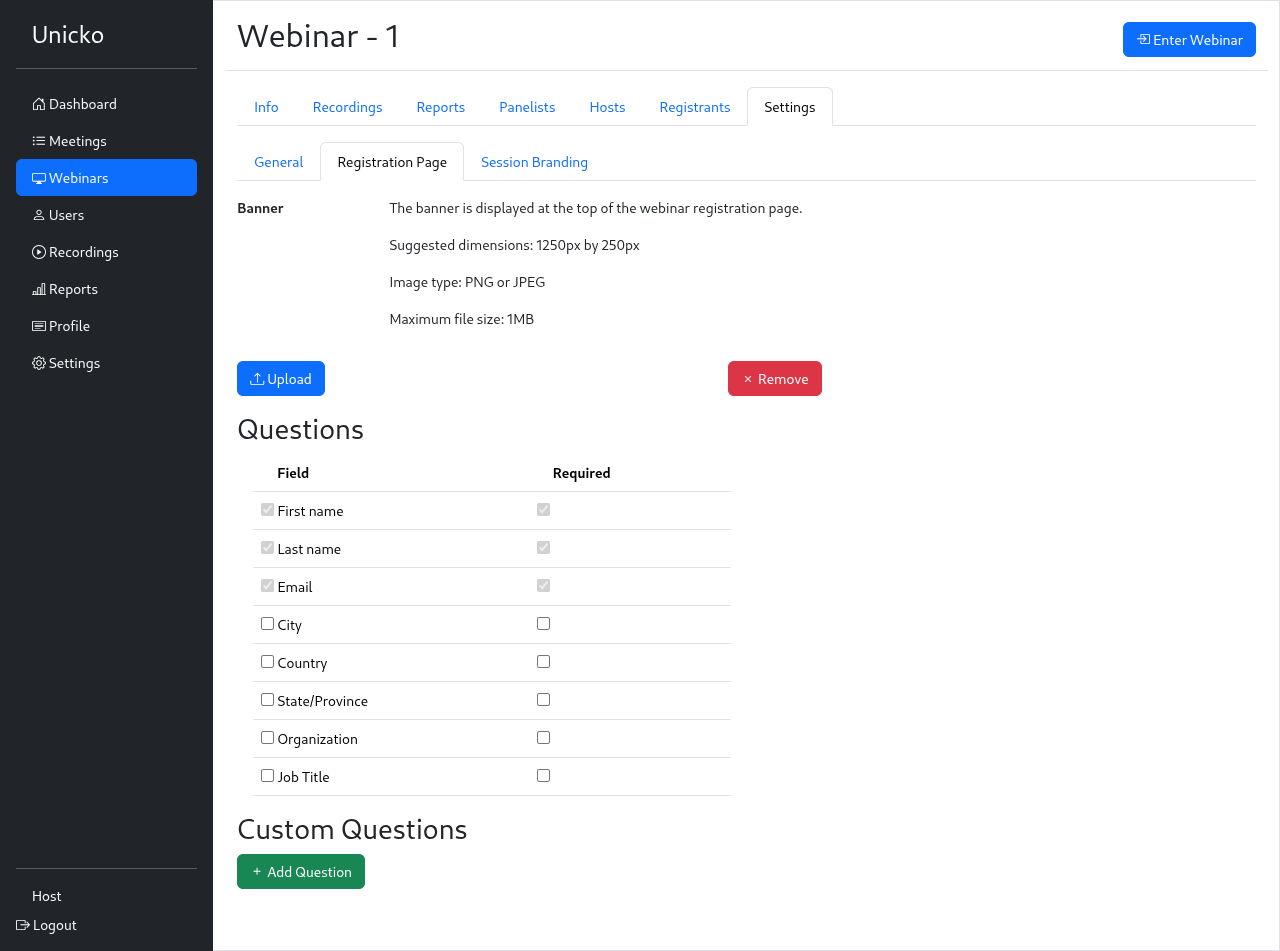
The host can Upload a banner and customize the registration page by selecting which questions to include. They can add additional custom fields to collect information from attendees when they register for a webinar.
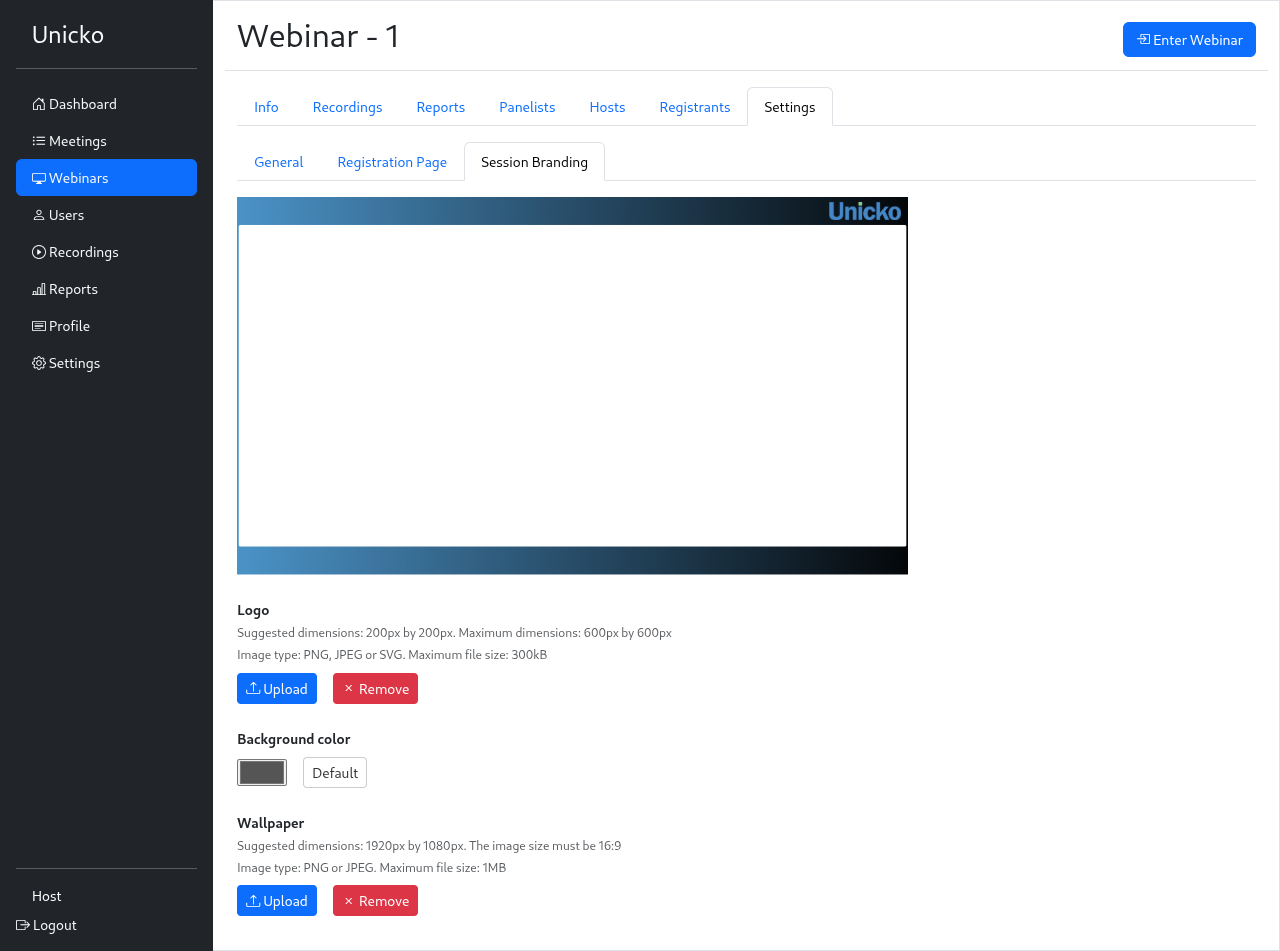
Session Branding
The host can Upload a logo and a background image (or select a background color) to customize the appearance of the webinar room.