Getting Started for Webinar Panelists
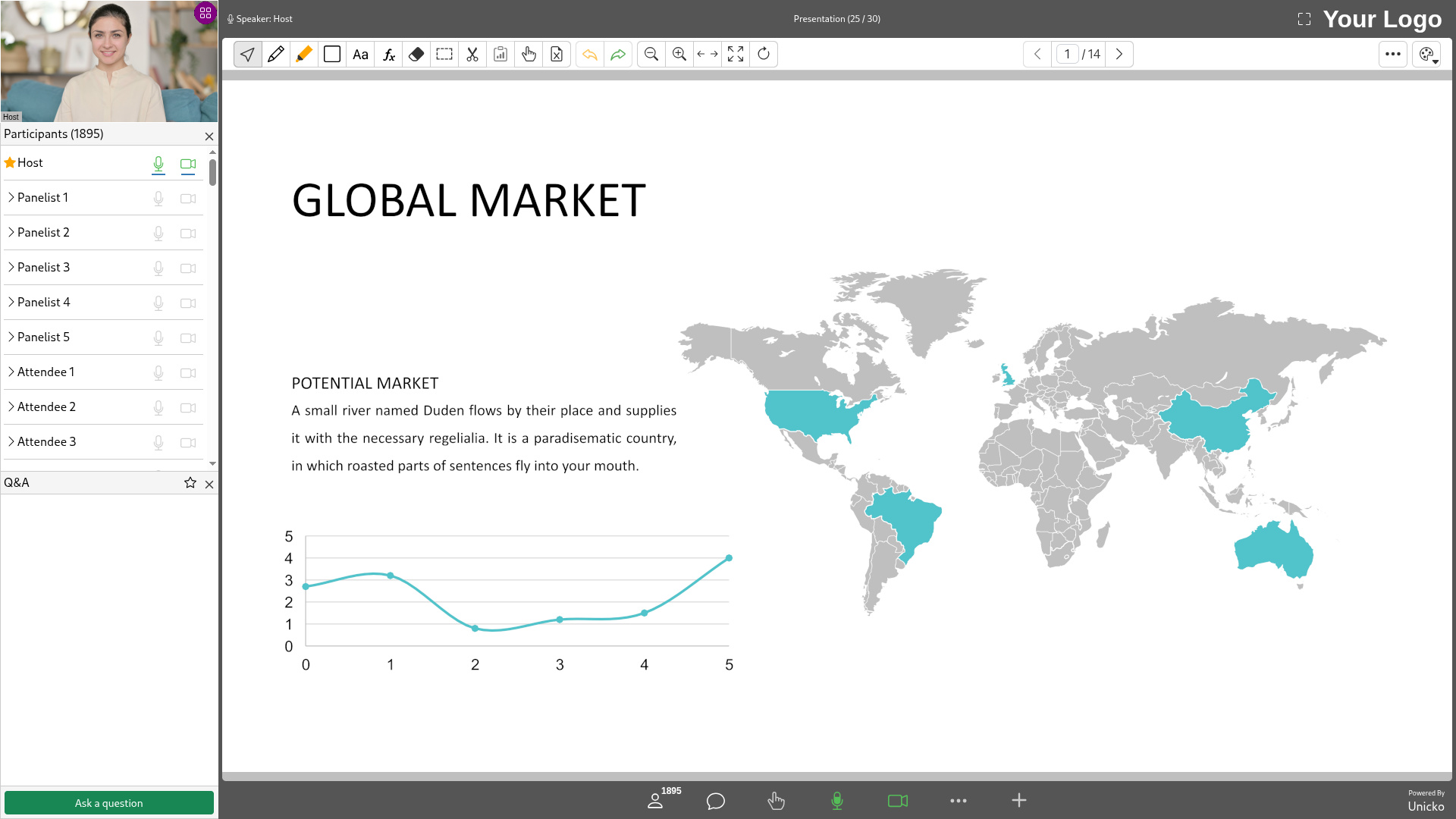
Unicko Webinar is a virtual platform for hosting large-scale events with a capacity of up to 2,000 attendees. It enables hosts and panelists to share audio, video, and presentations, and facilitates attendee interaction through Q&A and polling.
Panelists are guest speakers who can share their audio and video and answer attendee questions. They can broadcast their audio and video and participate in the Q&A. The host can promote one Panelist to Presenter, allowing them to deliver a presentation or share their screen. Panelists are designated before the session via a private invitation link or during the session by the host.
Participants
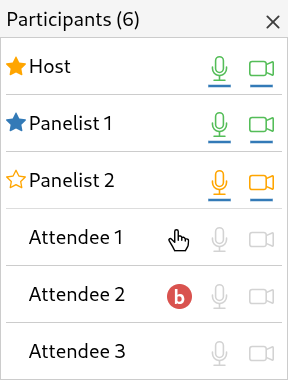
The participants panel shows details about each participant, including their role, permissions, hand raise status, and poll response.
& Camera
Role
- Host - The host possesses full administrative controls. They manage the entire webinar and can assign roles and permissions to all participants. (Identified by a yellow star next to their name).
- Presenter - The host can promote one Panelist to Presenter, allowing them to deliver a presentation or share their screen. (Identified by a blue star next to their name).
- Panelist - Panelists can share audio and video, and answer questions in the Q&A. (Identified by an outline yellow star next to their name).
- Attendee - Attendees can view shared content and videos, raise their hand, participate in polls, and ask questions in the Q&A.
Microphone and Camera
- Green color - The participant has permission and their device is turned on.
- Orange color - The participant has permission but has not turned on their device.
- Gray color - The participant does not have permission and therefore cannot turn on their device.
Raised Hand and Poll Response
- A participant’s raised hand and poll response are shown next to their name.
Q&A
The Question & Answer (Q&A) feature allows participants to ask questions during the session and upvote each other questions. Hosts and panelists can answer questions for everyone, or mark them to be answered live.
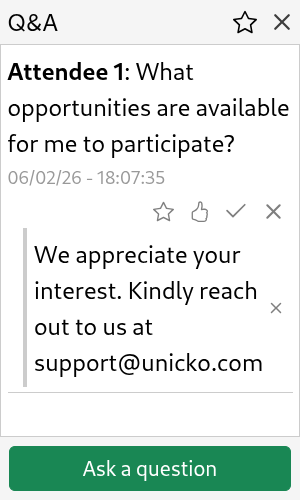
- To answer a question, click the arrow icon, type in the text box and click Send.
- to set as favorite, click the star icon.
- To upvote a question, click the like icon.
- To mark a question to be answered live, click the check icon.
- To delete a question, click the x icon.
- To close the Q&A box click the x button next to the title. You can reopen the Q&A using the toolbar.
Toolbar
The toolbar enables you to open and close side panels, manage the raise hand menu, turn on and off your microphone and camera and access the more options menu.

- Open and close the Participants panel.
- Open and close the Q&A panel.
- View the Raise Hand menu to see which participants have raised their hands and the order in which they did so.
- Turn on and off Microphone and Camera. The icon is orange when the device is off and green when the device is on.
- Open and close the Controls panel (available for presenter only).
More Options
The More Options menu provides access to additional features and settings.
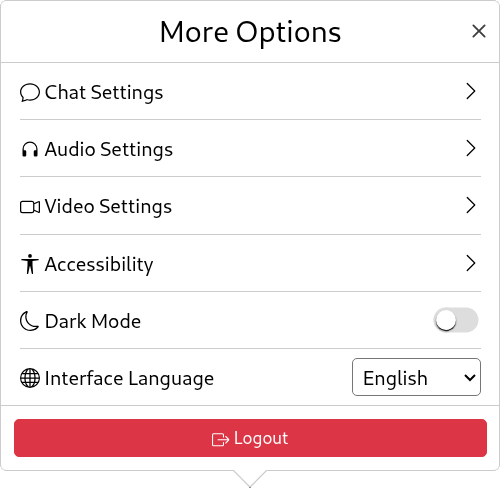
- Audio and Video Settings. Select your microphone and camera devices, replace your camera background and enable large gallery view.
- Logout. Leave the session.
Info Bar
The info bar, located at the top of the page, displays general information about the webinar.

- Speaker - The participant currently speaking.
- Active Feature - The tool or presentation which is currently being displayed.
- Recording Indication - Shown when a session is being recorded.
- Fullscreen - Click to toggle fullscreen mode.
Presentations and Documents
As presneter you can share Office files, PDF documents, presentations, and images. When you share a file, you control what attendees see, and scrolling or changing pages updates their view to match yours. Attendees will see a small red dot that follows your mouse movements, simulating a laser pointer.
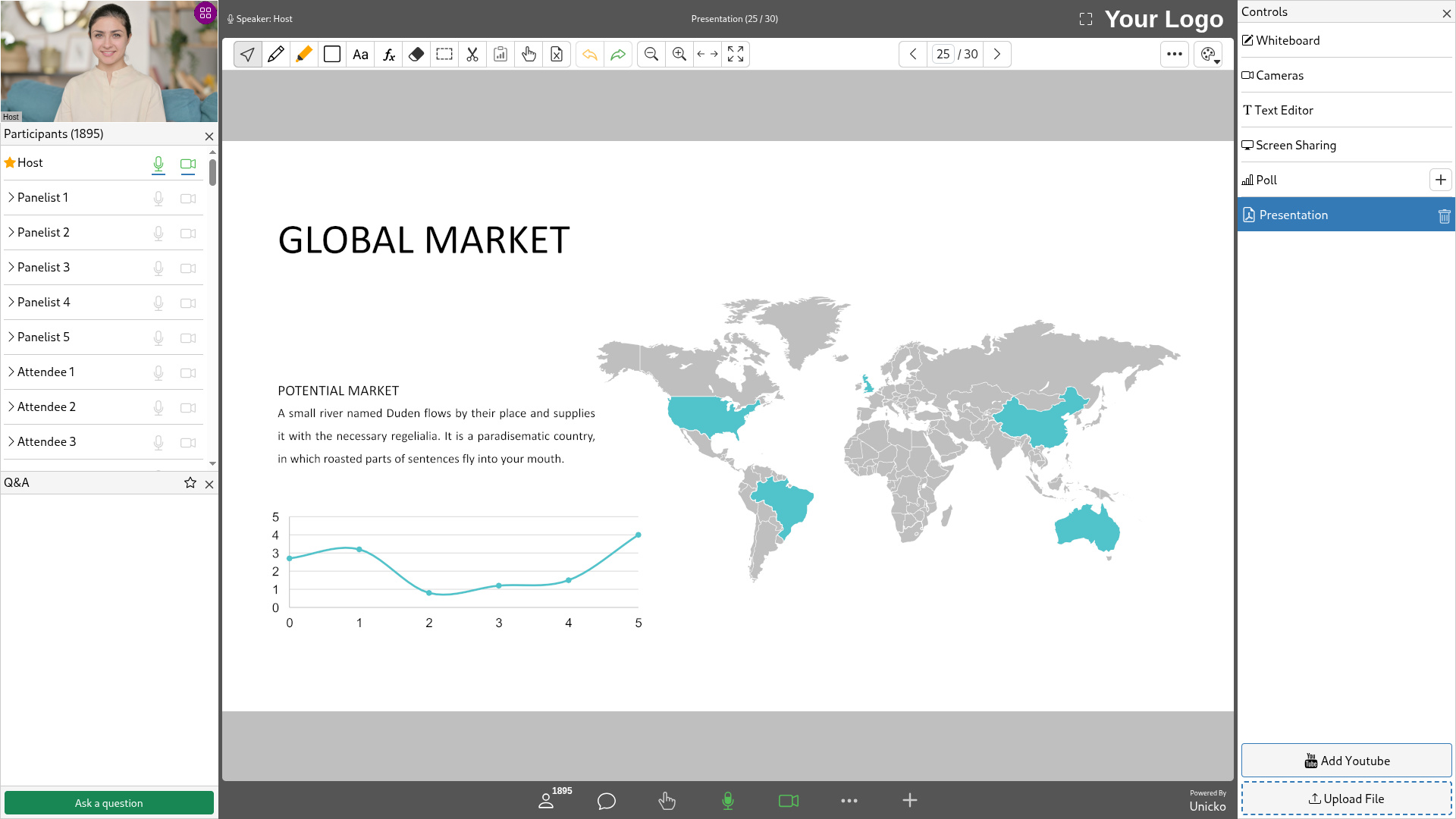
The toolbar provides access to markup and annotation tools:
- Pointer Tool - Click anywhere on the page to advance to the next slide or trigger animations in an interactive presentation.
- Annotation Tools - Write freehand, draw shapes, type text, and insert mathematical formulas or equations.
- Copy & Paste - Copy and paste annotations and images to or from the whiteboard.
- Zoom and Fit - Zoom in or out, and choose to fit the content to the page width (useful for documents) or display the full page (ideal for presentations).
- Paging - You can move between pages using the Page Up or Page Down keys, or by manually typing in the number of the page you wish to view.
Screen Sharing
As presenter you can share your screen.
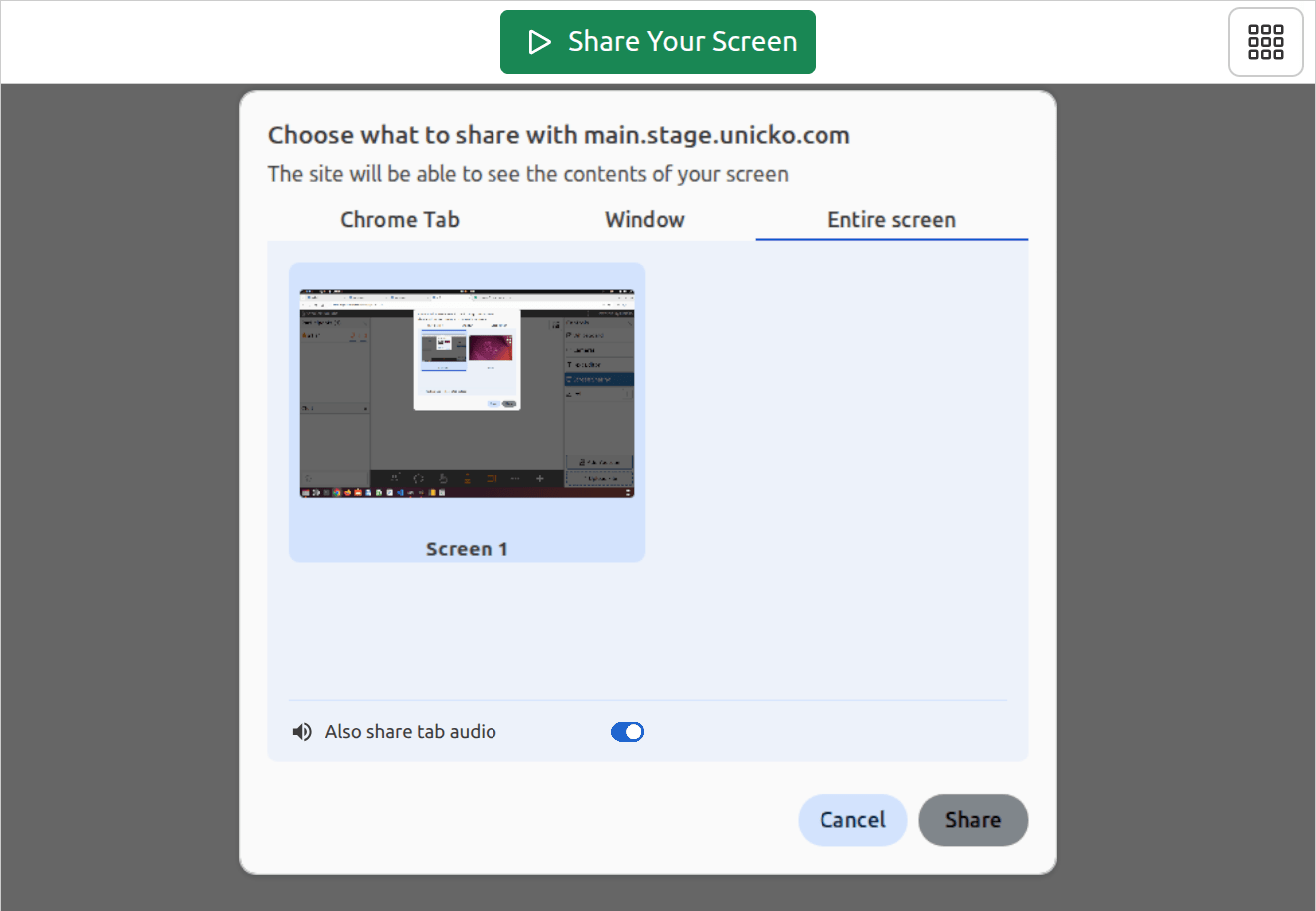
or Browser Tab
- Click the Share Your Screen button.
- Choose whether to share your Entire Screen, an Application Window, or a Browser Tab.
- Select the window you would like to share, then click Share.
- Optionally, toggle the Also share tab audio to share audio.